Friday, February 19, 2021

Google Workspace for Education


Check out this week's Learning with Google event to learn about news and updates about the rebranding of Google Workspace for Education.

Tuesday, October 13, 2020

New Features in Google Meet

So many new features rolling out in Google Meet right now. Read this post for all the details.


Thursday, April 9, 2020

Using Google Meet in Google Classroom

Google is currently making fixes to address the glitches in Google Meet: students joining a Meet before the teacher starts it, students being able to mute or remove the teacher and others, and students rejoining a Meet. Google Meet is also now integrated with Google Classroom. These changes are slowly rolling out. Continue to create nicknamed Meets, which will eventually enable the student restrictions. Check out the videos below from @ericcurts and @rangathetrainer for sneak peeks and to learn about the new features.


Monday, February 10, 2020

PPS is transitioning from O365/Outlook to Gmail

March 2 - BESC Staff & Early Adopters
This group will have Gmail and Google Calendar running alongside their Outlook email. Staff have the option of working in either platform but it is recommended to use one in order to minimize confusion.

March 23 - All Staff & 9-12 Grade Students
All users with existing PPS Email and Calendar services including students in grades 9-12 will be transitioned to Gmail and Google Calendar. After April 6, 2020, access to Outlook email and calendar will no longer be supported.

More info and FAQs available at pps.net/gmail-faq.

Tuesday, November 5, 2019

Monthly G Suite Tips


You can find all our monthly G Suite for Education #CopierPD tips here on the PPS G Suite for Education resource page. So far this year, tips have included multiple Chrome users and Google document URL tricks.

Thursday, September 19, 2019

Leanring Technologies Updates

crossposted on the Learning Technologies blog

How to Manage Multiple Google Accounts
Check out this G Suite for Education tip, our first in a monthly series.
For a full tutorial and video from Shake Up Learning, visit this link. For your staff, download and print this poster and put it up next to your copier! #CopierPD
Google Classroom
Lots of confusion around Google Classroom as the failed Edupoint/Synergy Gradebook sync led us to opt-in all class sections for the Google Classroom/Synergy sync. Several teacher teachers are seeing duplicate sections and students are being kicked out of classrooms. Please know that our team is working hard to resolve these issues and strange one-off situations. Some good news: in October, any classes that have no activity and have not been accessed will automatically be archived. We have gotten reports of students accessing these empty Google Classrooms and posting comments and replies on the stream.
Netop Vision
We’ve received several reports about how kids are already getting around the screen sharing in Vision. Teacher and student devices must be on the same network. Students may choose another wireless access point after they’ve signed in to the Chromebook to sidestep screen sharing. There was also another report of students turning off notifications to bypass the screen sharing dialog box, but we haven’t been able to replicate that error. Check your teacher settings and the settings we’ve turned on here:

Monday, August 5, 2019

Fall 2019 Updates

Teacher Chromebook Refresh
All teachers will receive a new HP 14" touchscreen Chromebook as their mobile device. The devices will be assigned to the teacher and not the classroom/school as it has been in previous years.

Staff Login on Existing Chromebooks
Since PPS has changed its Google domain to pps.net from apps4pps.net, staff login on existing Chromebooks is a little different. You may have noticed that the login window is auto-populated with @student.pps.net. To login, if you start typing your email address, the @student.pps.net will disappear once you type the @ symbol. Watch this quick video if you need help. New staff Chromebooks will not have this issue.

G Suite Learning Center
Get the most out of G Suite with training guides, tips, examples, and other resources in the newly updated Learning Center.

Google for Education: Teacher Center
Free, online training for the classroom that provides educators with guided training paths to learn one new thing or start the path to Google mastery. The teacher center has content to meet you where you are and get you where you want to be.

Google Certified Educator Exams
Google offers two educator certifications so that you can show mastery at the level that's right for you. Use the content in the teacher center and your own teaching experience to best prepare you for the performance-based exams. Once you feel adequately prepared, exams are available online and the educator certifications can be achieved at any time.

For educators who have learned the fundamentals of using Google tools in the classroom, the Level 1 certification validates standard technology implementation skills.
For educators who are super users and enthusiasts of Google tools in the classroom, the Level 2 certification validates advanced technology integration skills.

*If you are interested in the Level 1 certification, IT can pay the $10 certification fee! Contact Melissa Lim, mlim@pps.net, for more information.*

Wednesday, May 15, 2019

End-of-Year Google Classroom Cleanup Tips


Check out these great end-of-year Google Classroom cleanup tips from Eric Curts. He also includes a podcast version and a video version in the link above.
As the school year winds down, most teachers go through some sort of check-out procedure for their physical classrooms, making sure everything is properly organized or put away for the summer. In much the same way, you may want to do some clean-up and close-out steps for your digital classroom ... Google Classroom.

Free Summer PD! Save the Date for Camp Chromebook, June 19, 2019

Join us for another Camp Chromebook on Wednesday, June 19, 2019 at Northwest Regional ESD in Hillsboro, OR. This is a *free* professional learning opportunity for any educators interested in learning more about Google Apps and G Suite for Education tools and how to integrate them into your classroom instruction using best practices and relevant strategies. All levels welcome. Sessions will be posted on the website when the schedule is finalized.

Register here for the event to save your spot! We also need volunteers to facilitate sessions–do that here. ALL educators are welcome. Please help us spread the word and share this with any interested colleagues. 

About the camp:

  • Will run from 8am - 1pm for a full day of fun.
  • Bring your own device (Chromebook or laptop recommended).
  • Four session times, each one 55 minutes long.
  • Each session time slot will have multiple workshops to choose from, you pick what you want to learn more about.
  • PDUs will be available.
  • Visit the Camp Chromebook website for more information.

Friday, March 22, 2019

Google Forms Locked Mode Quizzes Beta

We just got notice that we joined the Google Forms locked mode Quizzes beta. This is a unique opportunity for you all to pilot a new unreleased feature in this product. Please review the details for the beta below:

Locked Mode Quizzes in Google Forms
Locked mode in Quizzes in Google Forms is a new way to keep students focused and distraction-free during tests and quizzes. Available only on managed Chromebooks, locked mode prevents students from navigating away from the Quiz in their Chrome browser until they submit their answers. Teachers can enable locked mode with a simple checkbox in Google Forms, giving them full control over assessments. For more information, check out the official blog post.

Follow these links for a step-by-step guide, brief animated tutorial, and new Help Center instructions to make learning how to use locked mode even easier.

Feedback
For locked mode Quizzes, we ask that you submit feedback through the “Send feedback” button in Forms. In the case where respondents are able to escape locked mode and open browsers during quizzes, please send us feedback using this form. We’d like to help resolve any issues as quickly as possible, so we appreciate the feedback.

In addition, throughout the betas you may be asked to fill out surveys on your overall experience with locked mode quizzes.

Tuesday, January 29, 2019

Updated Roadmap for Classic and New Google Sites


Read the full post from Google.

Google has updated plans for Google Sites and there are two key items:

  1. Build more enterprise-focused features into new Sites (including ones from classic Sites): Google listened to extensive feedback from customers and have identified a number of features in classic Sites that are particularly valuable to larger organizations. They plan to add comparable functionality for those features, along with new and unique features, to new Sites. They believe these will help you use new Sites in different and exciting ways, while making the transition process to new Sites easier and more streamlined. See below for more details on specific features. 
  2. The final date to transition from classic Sites to new Sites will be the end of 2021: Also based on customer feedback, they realize that classic Sites still offers unique value to our enterprise customers today. Google will continue to invest in maintaining core classic Sites functionality until end of year 2021. 

More features coming to new Sites 

  • Create richer, more customized sites
  • Create and manage larger sites

Transitioning from classic Sites to new Sites 
In 2016 Google announced a new version of Google Sites, and in 2017 they announced that new Sites would eventually become the only version of Google Sites. They’ve heard feedback that classic Sites remains valuable for customers. They plan to maintain core classic Sites functionality. This will extend the deadline to transition from classic to new Sites to the end of 2021.

Tuesday, January 8, 2019

G Suite/Google Apps User Surveys

Hope you can help IT by filling out these G Suite/Google Apps use surveys. One is for administrators and one if for teachers. Results will help guide future use of G Suite, as well as professional learning opportunities offered to district staff, and strengthen support. Please share and pass on to your admins and colleagues.


G Suite/Google Apps for Education Teacher Survey
https://goo.gl/kd1xLJ
Please fill out this brief survey to help us determine the use of Google Apps in your classroom and school.

G Suite/Google Apps for Education Admin Survey
https://goo.gl/zq17c3
Please fill out this brief survey to help us determine the use of Google Apps in your daily work and at your school.

Friday, November 9, 2018

Keeping track of work in G Suite

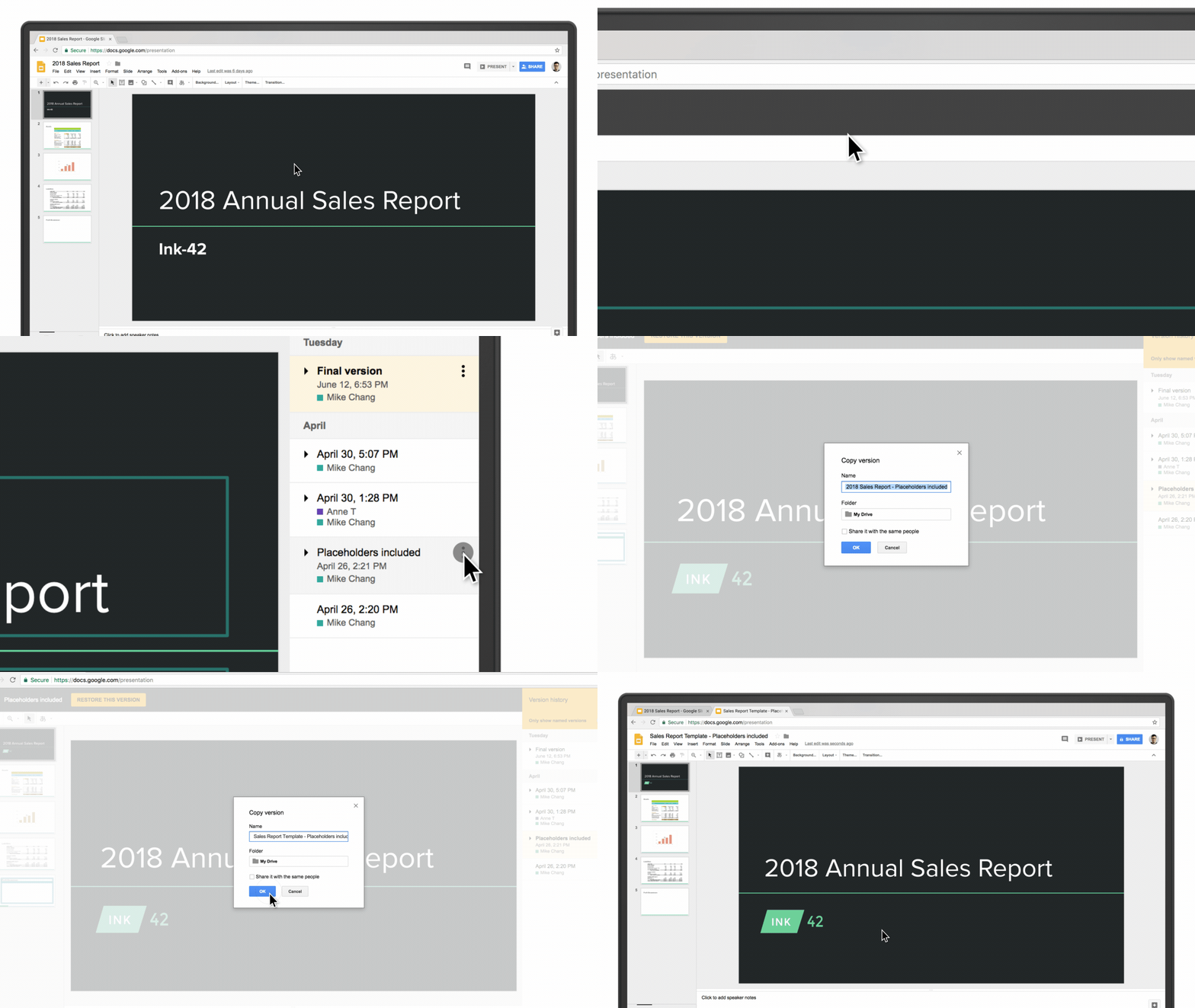
make copies.gif

From the Google blog:

How many times have you worked in a document only to realize halfway through that you’re editing an outdated version? Beyond being frustrating, this can cause confusion and slow down your project. One of the great things about working in cloud-native tools like G Suite is that everything is automatically saved. You never have to worry if you’re working on the most up-to-date version of a document because your apps do that for you.

But for the times that you need to go back and see changes, it’s simple. Go to File > Version history > See version history and view a complete list of changes to your document in one place. You can restore previous versions of a document there, too.

Another trick is to simply click the text at the top of your navigation bar that says “last edit was…” or “all changes saved” in Google Docs. If you hover over that text, it will actually tell you what the last change to the document was and who made it. Or if you’re returning to a document, you can click “See new changes” and the Doc will highlight edits that have been made since your last visit.

Tuesday, June 26, 2018

Live from ISTE: 12 Google for Education launches to save time for creativity

Locked mode in Google Forms Quizzes

Classwork gif

From the Google blog:

"On the first day of ISTE, Google for Education gives to you: 12 updates to help teachers save time and spark creativity in their students. By releasing educators of time-consuming tasks, these new features and tools will enhance teachers’ ability to organize courses, increase collaboration with students, and unleash creativity in the classroom."

Check out the full post.

Friday, March 23, 2018

Save the Date: Camp Chromebook, June 20, 2018


Join us for Camp Chromebook on Wednesday, June 20, 2018 at Boise-Eliot/Humboldt School in Portland, OR. This is a *free* professional learning opportunity for anyone that is interested in learning more about Google Apps and G Suite for Education tools and how to integrate them into your classroom instruction using best practices and relevant strategies. All levels welcome. Check back for the schedule to see the sessions that will be offered.

Register here for the event to save your spot! You can volunteer to facilitate a session here. Please share with any interested colleagues.

About the camp:
  • Will run from 8am - 1pm for a full day of fun.
  • Bring your own device (Chromebook or laptop recommended).
  • Four session times, each one 55 minutes long.
  • Each session time slot will have multiple workshops to choose from, you pick what you want to learn more about.
  • Use the hashtag #campchromebook to share your learning.
  • PDUs will be available.

Thursday, February 8, 2018

New Ways to Comment on Microsoft Files (and More) in Google Drive


From the Google Blog:

"Google Drive makes it easy to store and share files in the cloud so you can collaborate securely with your teams and clients while on the go. And we understand that teams work with all kinds of files and tools to get things done. Starting today, we're making it possible to comment directly on more file types including Microsoft Office files, PDFs and images—without having to convert them into Docs, Sheets or Slides." Read more details at the post linked above.

Friday, January 12, 2018

Clever Badges for K-3


Clever Badges were sent out to all K-3 classrooms right after winter break. The badges are a fast and fun way for K-3 students (sorry, not for staff) to log in to Chromebooks—no typing necessary, allowing instructional time to be saved. TechSmart and Title 1 schools have already been using Clever Badges with great success. This first year, IT has partnered with PPS Libraries to sponsor the printing and distribution of Clever Badges, including lanyards and badge holders, to our remaining K-3 grades at the 33 schools that don’t currently have them. All K-3 staff at each building have the ability to print out new and/or replacement badges and it is expected that after this year, each building will be responsible for printing out their own badges for the new class of incoming kindergartners while transitioning the current student badges to their next grade level. A Clever Badge/IT Outreach pop-up station is available to visit schools to offer support and answer questions about Clever Badges or general IT-related issues. If you are interested in having the pop-up come to your building, please fill out the form and offer three possible dates and times. Once the calendar is finalized, you’ll receive a confirmation message with the date of your visit. If you have questions, please visit the Clever webpage for more information or contact the IT Service Desk at itservicedesk@pps.net or 503-916-3375.

An Update on the Classic Google Sites Deprecation Timeline

Check out this information about how to migrate from the classic version of Google Sites, so you can effectively plan for the eventual shutdown of the classic Sites.

Friday, December 8, 2017

Reminder: Please Continue to Share Info About New Chromebook Login Screen


Please continue to share information about this change since IT has received feedback that some users are still confused about how to login on the new Chromebook login screen. Remind everyone to just click the “Sign in with a different account” link on the left hand side. ONLY K-3 students using a Clever Badge can login by clicking “NEXT” on the right side. Clicking “Sign in with a different account” allows you to enter your login credentials and bypasses all the issues that users are having. Posters were ponied to all schools, but here’s the link if you want to print and share it again: bit.ly/cbloginposter. Also, in case anyone is worried–the camera is not taking pictures or recording video of anyone–several staff were confused that this might be happening. Other questions? Direct folks to the Chromebook Login & Clever FAQ at bit.ly/ppsclever. Here's the link to the video posted above.