Teacher Chromebook Refresh
All teachers will receive a new HP 14" touchscreen Chromebook as their mobile device. The devices will be assigned to the teacher and not the classroom/school as it has been in previous years.
Staff Login on Existing Chromebooks
Since PPS has changed its Google domain to pps.net from apps4pps.net, staff login on existing Chromebooks is a little different. You may have noticed that the login window is auto-populated with @student.pps.net. To login, if you start typing your email address, the @student.pps.net will disappear once you type the @ symbol. Watch this quick video if you need help. New staff Chromebooks will not have this issue.
G Suite Learning Center
Get the most out of G Suite with training guides, tips, examples, and other resources in the newly updated Learning Center.
Google for Education: Teacher Center
Free, online training for the classroom that provides educators with guided training paths to learn one new thing or start the path to Google mastery. The teacher center has content to meet you where you are and get you where you want to be.
Google Certified Educator Exams
Google offers two educator certifications so that you can show mastery at the level that's right for you. Use the content in the teacher center and your own teaching experience to best prepare you for the performance-based exams. Once you feel adequately prepared, exams are available online and the educator certifications can be achieved at any time.
For educators who have learned the fundamentals of using Google tools in the classroom, the Level 1 certification validates standard technology implementation skills.
For educators who are super users and enthusiasts of Google tools in the classroom, the Level 2 certification validates advanced technology integration skills.
*If you are interested in the Level 1 certification, IT can pay the $10 certification fee! Contact Melissa Lim, mlim@pps.net, for more information.*
Monday, August 5, 2019

Wednesday, May 15, 2019
End-of-Year Google Classroom Cleanup Tips

As the school year winds down, most teachers go through some sort of check-out procedure for their physical classrooms, making sure everything is properly organized or put away for the summer. In much the same way, you may want to do some clean-up and close-out steps for your digital classroom ... Google Classroom.
Free Summer PD! Save the Date for Camp Chromebook, June 19, 2019

Register here for the event to save your spot! We also need volunteers to facilitate sessions–do that here. ALL educators are welcome. Please help us spread the word and share this with any interested colleagues.
About the camp:
- Will run from 8am - 1pm for a full day of fun.
- Bring your own device (Chromebook or laptop recommended).
- Four session times, each one 55 minutes long.
- Each session time slot will have multiple workshops to choose from, you pick what you want to learn more about.
- PDUs will be available.
- Visit the Camp Chromebook website for more information.
Friday, March 22, 2019
Google Forms Locked Mode Quizzes Beta
We just got notice that we joined the Google Forms locked mode Quizzes beta. This is a unique opportunity for you all to pilot a new unreleased feature in this product. Please review the details for the beta below:
Locked Mode Quizzes in Google Forms
Locked mode in Quizzes in Google Forms is a new way to keep students focused and distraction-free during tests and quizzes. Available only on managed Chromebooks, locked mode prevents students from navigating away from the Quiz in their Chrome browser until they submit their answers. Teachers can enable locked mode with a simple checkbox in Google Forms, giving them full control over assessments. For more information, check out the official blog post.
Follow these links for a step-by-step guide, brief animated tutorial, and new Help Center instructions to make learning how to use locked mode even easier.
Feedback
For locked mode Quizzes, we ask that you submit feedback through the “Send feedback” button in Forms. In the case where respondents are able to escape locked mode and open browsers during quizzes, please send us feedback using this form. We’d like to help resolve any issues as quickly as possible, so we appreciate the feedback.
In addition, throughout the betas you may be asked to fill out surveys on your overall experience with locked mode quizzes.
Locked Mode Quizzes in Google Forms
Locked mode in Quizzes in Google Forms is a new way to keep students focused and distraction-free during tests and quizzes. Available only on managed Chromebooks, locked mode prevents students from navigating away from the Quiz in their Chrome browser until they submit their answers. Teachers can enable locked mode with a simple checkbox in Google Forms, giving them full control over assessments. For more information, check out the official blog post.
Follow these links for a step-by-step guide, brief animated tutorial, and new Help Center instructions to make learning how to use locked mode even easier.
Feedback
For locked mode Quizzes, we ask that you submit feedback through the “Send feedback” button in Forms. In the case where respondents are able to escape locked mode and open browsers during quizzes, please send us feedback using this form. We’d like to help resolve any issues as quickly as possible, so we appreciate the feedback.
In addition, throughout the betas you may be asked to fill out surveys on your overall experience with locked mode quizzes.
Tuesday, January 29, 2019
Updated Roadmap for Classic and New Google Sites

Read the full post from Google.
Google has updated plans for Google Sites and there are two key items:
- Build more enterprise-focused features into new Sites (including ones from classic Sites): Google listened to extensive feedback from customers and have identified a number of features in classic Sites that are particularly valuable to larger organizations. They plan to add comparable functionality for those features, along with new and unique features, to new Sites. They believe these will help you use new Sites in different and exciting ways, while making the transition process to new Sites easier and more streamlined. See below for more details on specific features.
- The final date to transition from classic Sites to new Sites will be the end of 2021: Also based on customer feedback, they realize that classic Sites still offers unique value to our enterprise customers today. Google will continue to invest in maintaining core classic Sites functionality until end of year 2021.
More features coming to new Sites
- Create richer, more customized sites
- Create and manage larger sites
Transitioning from classic Sites to new Sites
In 2016 Google announced a new version of Google Sites, and in 2017 they announced that new Sites would eventually become the only version of Google Sites. They’ve heard feedback that classic Sites remains valuable for customers. They plan to maintain core classic Sites functionality. This will extend the deadline to transition from classic to new Sites to the end of 2021.
Tuesday, January 8, 2019
G Suite/Google Apps User Surveys
 Hope you can help IT by filling out these G Suite/Google Apps use surveys. One is for administrators and one if for teachers. Results will help guide future use of G Suite, as well as professional learning opportunities offered to district staff, and strengthen support. Please share and pass on to your admins and colleagues.
G Suite/Google Apps for Education Teacher Survey
https://goo.gl/kd1xLJ
Please fill out this brief survey to help us determine the use of Google Apps in your classroom and school.
G Suite/Google Apps for Education Admin Survey
https://goo.gl/zq17c3
Please fill out this brief survey to help us determine the use of Google Apps in your daily work and at your school.
Friday, November 9, 2018
Keeping track of work in G Suite
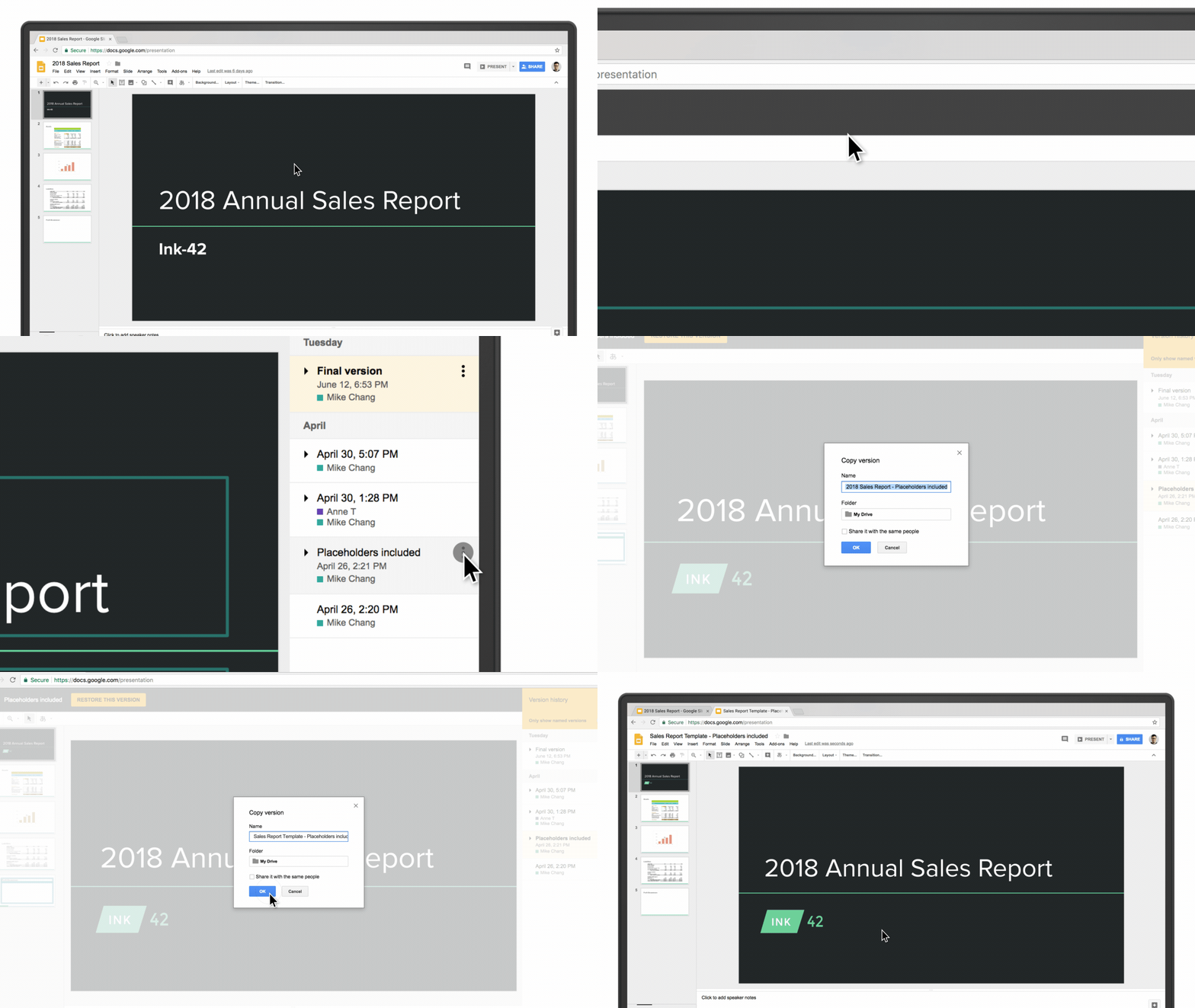
From the Google blog:
How many times have you worked in a document only to realize halfway through that you’re editing an outdated version? Beyond being frustrating, this can cause confusion and slow down your project. One of the great things about working in cloud-native tools like G Suite is that everything is automatically saved. You never have to worry if you’re working on the most up-to-date version of a document because your apps do that for you.
But for the times that you need to go back and see changes, it’s simple. Go to File > Version history > See version history and view a complete list of changes to your document in one place. You can restore previous versions of a document there, too.
Another trick is to simply click the text at the top of your navigation bar that says “last edit was…” or “all changes saved” in Google Docs. If you hover over that text, it will actually tell you what the last change to the document was and who made it. Or if you’re returning to a document, you can click “See new changes” and the Doc will highlight edits that have been made since your last visit.
Subscribe to:
Posts (Atom)